
How do I sign in to the staff console?
The console is for staff. Patients do not use this address.
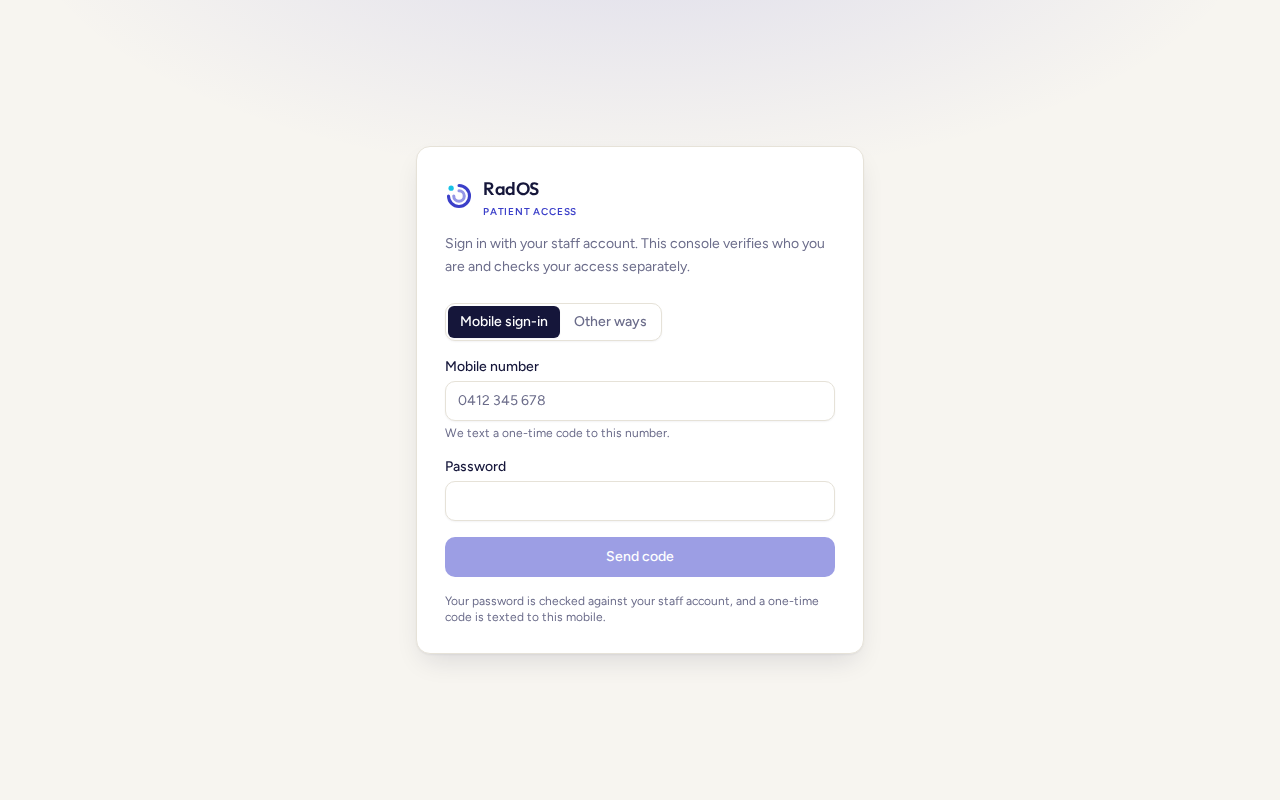
- Open the staff console address your practice was given. Before the console itself, you pass your organisation access check (Cloudflare Access). Sign in there with your work account. This guide does not cover how that check is set up.
- If you open Patient Portal inside VRG Hub, Hub signs you into the same console. You still need a portal staff grant for your email. Being an administrator in Hub does not open the console on its own.
- If the console asks you to sign in, use your own staff account. When Mobile sign-in is shown, enter your staff mobile and password, choose Send code, then enter the 6 digit code from the text and choose Verify and sign in. Back returns to the password. It does not send another code until you choose Send code again.
- Other ways, when they are offered, are on the second tab. Use the one your practice set up. Do not share a login.
- After sign-in, the sidebar shows your role: viewer, operator, or admin. A chip says Dry run when automatic result texts are suppressed. The chip says notifications are suppressed and no patient is texted. That line is about the automatic queue. A staff Send SMS is still a real text. See the notification page.
Who can do what
| Role | Day to day |
|---|---|
| Viewer | Look up patients and studies, and read the decision. Cannot release, hold, or send a link. |
| Operator | Everything a viewer can do, plus hold, release early, and send a patient link to the details on file. |
| Admin | Everything an operator can do, plus release rules, switching reports off for a clinic, and a source exception on one study. |
View as patient is a separate tick on the staff record. An admin role does not add it. In Hub, the matching permission is separate from ordinary view.
Clinic scopeA Hub login can be limited to particular clinics. The standalone console can show a wider practice. Confirm the clinic on the study before you change a release.